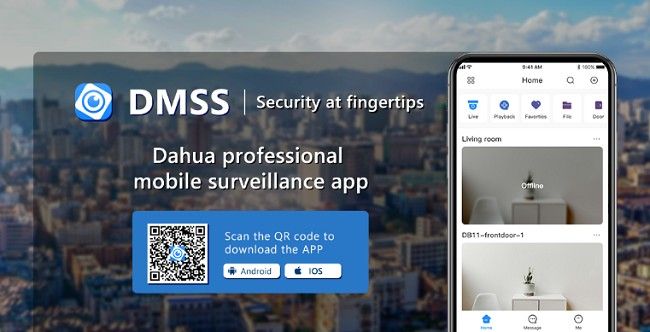
How to Monitor CCTV Cameras Using DMSS App?
In today’s world, security is a major concern for homes and businesses alike. Surveillance cameras, or CCTV (closed-circuit television) systems, are an essential part of modern security solutions, providing real-time monitoring and valuable evidence in case of incidents. To make managing and monitoring these cameras more convenient, DMSS app is one of the best tools available.
The DMSS app, developed by Dahua Technology, allows users to remotely monitor their CCTV cameras using their smartphones, tablets, and even computers. With its user-friendly interface and powerful features, the app enables seamless integration with your security devices, giving you control at your fingertips. This guide will walk you through the entire process of monitoring your CCTV cameras using the DMSS app, including setup, real-time monitoring, playback, receiving alerts, and other essential features.
What is the DMSS App?
Before diving into how you can use the DMSS app to monitor your CCTV cameras, it's important to understand what it is and why it's such a popular tool among surveillance system users.
The DMSS app is a mobile and desktop application developed by Dahua Technology for the management of surveillance devices. It supports a wide variety of Dahua CCTV cameras, including IP cameras, DVRs, and NVRs. DMSS provides users with the ability to remotely access their surveillance feeds, view recorded footage, and manage multiple cameras or devices from a single interface.
Key Features of DMSS App:
Real-Time Monitoring: View live video feeds from your CCTV cameras.
Playback: Watch recorded footage from previous days or hours.
Push Notifications: Receive instant alerts for motion detection or alarms triggered by your CCTV cameras.
Two-Way Audio: Communicate with people near your camera if it supports two-way audio.
Multi-Device Support: Manage multiple CCTV devices from a single app.
Cloud Storage: Save video recordings to the cloud for easy access and backup.
Remote Control: Configure and control your cameras remotely.
The DMSS app is compatible with both Android and iOS devices and allows users to manage their security systems efficiently, no matter where they are.
Why Use DMSS App to Monitor CCTV Cameras?
The DMSS app is designed to offer a seamless surveillance experience, and there are several compelling reasons why it's ideal for monitoring CCTV cameras:
Ease of Use: The app’s user-friendly interface makes it easy for anyone to navigate and monitor their CCTV cameras without technical knowledge.
Remote Access: DMSS allows you to access live video feeds from your CCTV cameras from virtually anywhere. Whether you’re on vacation or at work, you can keep an eye on your property.
Instant Alerts: The app sends you instant notifications whenever it detects motion or when an alarm is triggered. This helps you act swiftly and avoid potential security threats.
Multiple Devices: If you have more than one CCTV camera or even a full surveillance system, DMSS can manage multiple devices from the same account.
Two-Way Communication: If your CCTV cameras are equipped with two-way audio, you can communicate with people in the monitored area, providing additional security features.
Now that you understand why DMSS is a powerful tool for monitoring your CCTV cameras, let’s go over how you can set up and use the app.
How to Set Up & Monitor CCTV Cameras Using DMSS App?
Setting up the DMSS app to monitor your CCTV cameras is a simple and straightforward process. Follow the steps below to start monitoring your cameras in no time.
Step 1: Download and Install the DMSS App
The first step to monitoring your CCTV cameras using the DMSS app is downloading and installing the app on your mobile device.
For Android:
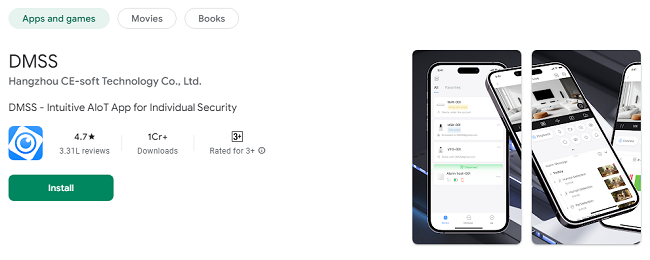
Open the Google Play Store on your Android device.
Search for DMSS in the search bar.
Tap on the Install button next to the DMSS app.
Wait for the installation process to complete.
For iOS:
Open the App Store on your iPhone or iPad.
In the search bar, type DMSS and press enter.
Tap the Install button next to the app’s name.
Wait for the app to install on your device.
Once the installation is complete, the DMSS app will appear on your device’s home screen. Open the app to proceed with the setup.
Step 2: Sign Up or Log In
If you’re a new user, you’ll need to create an account with DMSS. If you already have an account, simply log in.
Sign Up: Tap the Sign Up button on the app’s welcome screen. You’ll be asked to provide a username, email address, and password. Once your account is created, proceed to log in.
Log In: If you already have an account, simply tap the Login button and enter your credentials (username/email and password).
Step 3: Add Your CCTV Camera to DMSS
After logging in, you need to add your CCTV camera (or cameras) to the DMSS app. Follow these steps to do so:
Tap on the ‘+’ Button: On the home screen of the DMSS app, tap the ‘+’ button or ‘Add Device’ button to start adding your CCTV devices.
Select Device Type: You’ll be prompted to select the type of device you’re adding. Choose IP Camera, DVR, or NVR, depending on your system.
Enter Device Information: You’ll need to input the device’s IP address, username, password, and port number. This information is typically available in the documentation that came with your CCTV device.
Device Connection: Once you’ve entered the necessary information, tap Connect or Save to add the device to the DMSS app.
If your CCTV system supports QR Code scanning, you can also use the app’s QR Code Scanner to automatically add your device by scanning the QR code that’s provided with your CCTV camera or recorder.
Step 4: Viewing Live CCTV Camera Feeds
Once your CCTV camera is added to the DMSS app, you can start monitoring live footage. Here’s how to do it:
Open the Camera Feed: On the DMSS app’s home screen, you’ll see a list of all the connected devices. Tap on the camera you want to view.
View Real-Time Video: The live feed will appear on your screen. You can adjust the video quality settings, depending on your internet connection.
Switch Between Cameras: If you have multiple cameras set up, you can swipe between different camera feeds or view them simultaneously in a grid layout.
Step 5: Playback CCTV Footage
In addition to live viewing, the DMSS app allows you to view recorded CCTV footage. Here’s how to access playback:
Go to Playback: From the app’s main screen, tap on the Playback button.
Select Date and Time: You’ll be asked to select the date and time range for the footage you want to review.
View the Footage: Once you’ve chosen the time range, the footage will begin playing. You can pause, rewind, or fast-forward the video as needed.
This feature is essential for reviewing events that have already taken place, whether for security purposes or for evidence in case of an incident.
Step 6: Receiving Push Notifications
One of the standout features of the DMSS app is its push notification system, which alerts you to any unusual activities detected by your CCTV cameras. These notifications could be triggered by motion detection, an alarm, or other events.
Enable Notifications: Make sure you’ve enabled push notifications in the app’s settings. Go to Settings > Notifications and toggle on the alerts you want to receive.
Action on Alerts: When you receive a notification, tap on it to view the live feed or access recorded footage to check what triggered the alert.
Push notifications can help you stay on top of potential security risks in real-time, allowing you to take action immediately if needed.
Step 7: Two-Way Audio Communication (If Supported)
If your CCTV camera supports two-way audio, the DMSS app allows you to communicate with people near the camera. Here’s how you can use this feature:
Tap the Audio Icon: While viewing live footage, you’ll see an icon for two-way audio. Tap on this icon to activate the microphone and speaker.
Speak and Listen: Once activated, you can speak into your phone or tablet’s microphone, and the person near the camera will hear you. Likewise, you’ll be able to listen to any sounds near the camera.
This feature is particularly useful for security situations where you need to communicate with someone at the monitored location, such as asking someone to leave or notifying someone of suspicious activity.
Tips for Optimizing CCTV Monitoring with DMSS
To get the most out of the DMSS app when monitoring your CCTV cameras, consider these tips:
Adjust Video Quality: If you have a slow internet connection, adjust the video quality in the app’s settings for smoother playback.
Use Cloud Storage: Enable cloud storage for your footage to ensure that important recordings are backed up and easily accessible.
Set Up Multiple Devices: If you have several cameras or devices, set them all up in the DMSS app for easier management and monitoring.
Keep the App Updated: Always update the app to the latest version to ensure that you have the latest features and bug fixes.
Conclusion
The DMSS app is an essential tool for anyone looking to monitor their CCTV cameras remotely. With its intuitive interface and powerful features, it offers real-time surveillance, playback of recorded footage, instant alerts, and even two-way audio. Whether you’re monitoring your home, office, or business, the DMSS app allows you to stay connected to your security system at all times.
By following this guide, you can easily set up and start using the DMSS app to monitor your CCTV cameras and enhance your security management. Stay protected, stay informed, and take control of your security with the DMSS app.
Trending Now
Updates