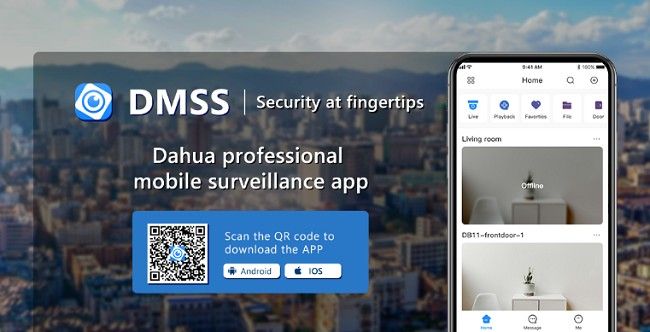
DMSS for Android - Download App on Your Smartphones & Tablets
In today’s fast-paced world, staying connected to your security system is more crucial than ever. The DMSS app is an excellent tool for managing and monitoring your surveillance devices, offering real-time access and a host of features. This guide will walk you through everything you need to know about downloading, setting up, and using the DMSS app on your Android device. Let’s dive in!
What is the DMSS App?
The DMSS app, short for Digital Mobile Surveillance System, is a powerful mobile application designed to streamline security management. Whether you're monitoring a home, office, or business, the DMSS app allows you to:
View real-time video streams.
Access playback footage.
Receive instant notifications for triggered alarms.
Manage and control compatible security devices.
Available for free on the Google Play Store, the DMSS app is designed to integrate seamlessly with Dahua Technology’s security solutions.
Why Download the DMSS App?
Before we get into the steps, it’s worth noting why this app is a must-have for Android users:
Convenience: Monitor your property anytime, anywhere.
Real-Time Alerts: Stay updated with instant push notifications.
Remote Access: Control your security system remotely.
How to Download DMSS App for Android?
Open Google Play Store:
On your Android device, navigate to the Google Play Store. Ensure you’re connected to a stable Wi-Fi or cellular network.
Search for the DMSS App:
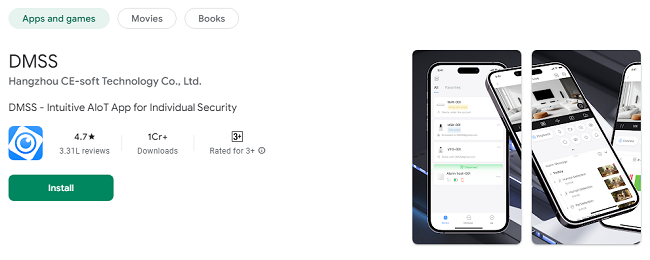
In the search bar, type “DMSS” and look for the official app developed by Dahua Technology.
Tap Install:
Once you locate the app, tap the “Install” button. The app will download and install automatically.
Open the App:
After installation, tap “Open” to launch the app. Alternatively, locate the DMSS icon on your home screen.
Setting Up the DMSS App on Android
#1 Creating an Account
Launch the app and tap “Sign Up.”
Enter your email address and create a strong password.
Verify your email through the link sent to your inbox.
Log in to your new account.
#2 Adding Your Devices
Connect Your Device:
Tap the “+” icon on the home screen.
Scan the QR code on your security device or manually enter the device’s serial number.
Set Up Wi-Fi:
Ensure your Android device is connected to the same Wi-Fi network as your security device.
Follow the on-screen prompts to pair the devices.
Customize Device Settings:
Name your device for easy identification.
Adjust settings such as resolution, notification preferences, and more.
Steps to Navigating the DMSS App Interface
The DMSS app features a user-friendly interface, making it easy for users of all technical levels. Here’s an overview:
Home Screen:
The home screen displays a summary of your connected devices. You can:
View live camera feeds.
Access recently triggered alarms.
Add new devices.
Playback Tab:
Revisit recorded footage by:
Tapping the “Playback” tab.
Selecting the desired device.
Adjusting the timeline to locate specific events.
Notifications Tab:
This tab keeps you informed about:
Motion detections.
Alarm triggers.
System updates.
Device Management:
In the settings menu, manage your devices by:
Updating firmware.
Renaming devices.
Sharing access with family or colleagues.
Key Features of the DMSS App on Android
The DMSS app’s feature-rich environment makes it a standout choice for security management. Here are some highlights:
1. Live Video Monitoring
Access live video feeds from your cameras at any time. Switch between multiple cameras to get a comprehensive view of your property.
2. Playback Functionality
Missed an important event? Use the playback feature to review recorded footage with ease.
3. Instant Notifications
Stay informed with real-time alerts for:
Motion detection.
Sound detection.
Device tampering.
4. Two-Way Communication
Interact directly with visitors or deter intruders using the two-way audio feature on compatible devices.
5. Remote Device Control
Control connected devices such as alarms, lights, and locks directly from the app.
Tips for Using the DMSS App Effectively
1. Enable Two-Factor Authentication (2FA)
Enhance your account’s security by enabling 2FA in the app settings.
2. Customize Notifications
Avoid unnecessary alerts by adjusting notification preferences for each device.
3. Regularly Update the App
Keep the app updated to access new features and bug fixes.
4. Test Your Devices Periodically
Ensure all connected devices are functioning correctly by conducting routine checks.
5. Leverage Cloud Storage
Store footage securely by integrating the app with a cloud storage solution.
Troubleshooting Common Issues
Problem: Unable to Connect Device
Ensure your Android device and security device are on the same Wi-Fi network.
Double-check the QR code or serial number.
Restart both devices and try again.
Problem: No Notifications
Verify that notifications are enabled in both the app and your Android device settings.
Check that the device’s firmware is up-to-date.
Problem: App Crashing
Clear the app cache in your Android settings.
Reinstall the app if the issue persists.
Advantages of Using the DMSS App on Android
Ease of Use
The intuitive design ensures a smooth user experience.
Portability
Monitor your security system on the go with your Android device.
Affordability
The app is free to download, with no hidden costs.
Comprehensive Security
From live feeds to alarm management, the DMSS app offers an all-in-one solution.
Frequently Asked Questions (FAQs)
Q: Is the DMSS app free for Android users?
Yes, the DMSS app is free to download from the Google Play Store.
Q: Can I connect multiple devices to the app?
Absolutely! The app supports multiple devices, making it ideal for managing various locations.
Q: Is the app secure?
Yes, the DMSS app uses advanced encryption and security protocols to protect your data.
Conclusion
The DMSS app is a powerful and user-friendly tool for Android users looking to enhance their security systems. From easy setup to advanced features like real-time monitoring and playback, the app offers everything you need to stay connected and secure. Download the DMSS app today and take control of your security system with confidence.
Trending Now
Updates